How to Free Up Storage Space on Your iPhone: Working Methods
Running out of storage on an iPhone usually happens gradually, then all at once — you go to update an app or take a photo and get a warning that there’s no space left. Before deleting anything at random, it helps to know exactly what’s taking up room and which methods actually free up space without touching data you need. Here’s a practical rundown of working methods that don’t require guesswork.
Check What’s Actually Using Your Storage
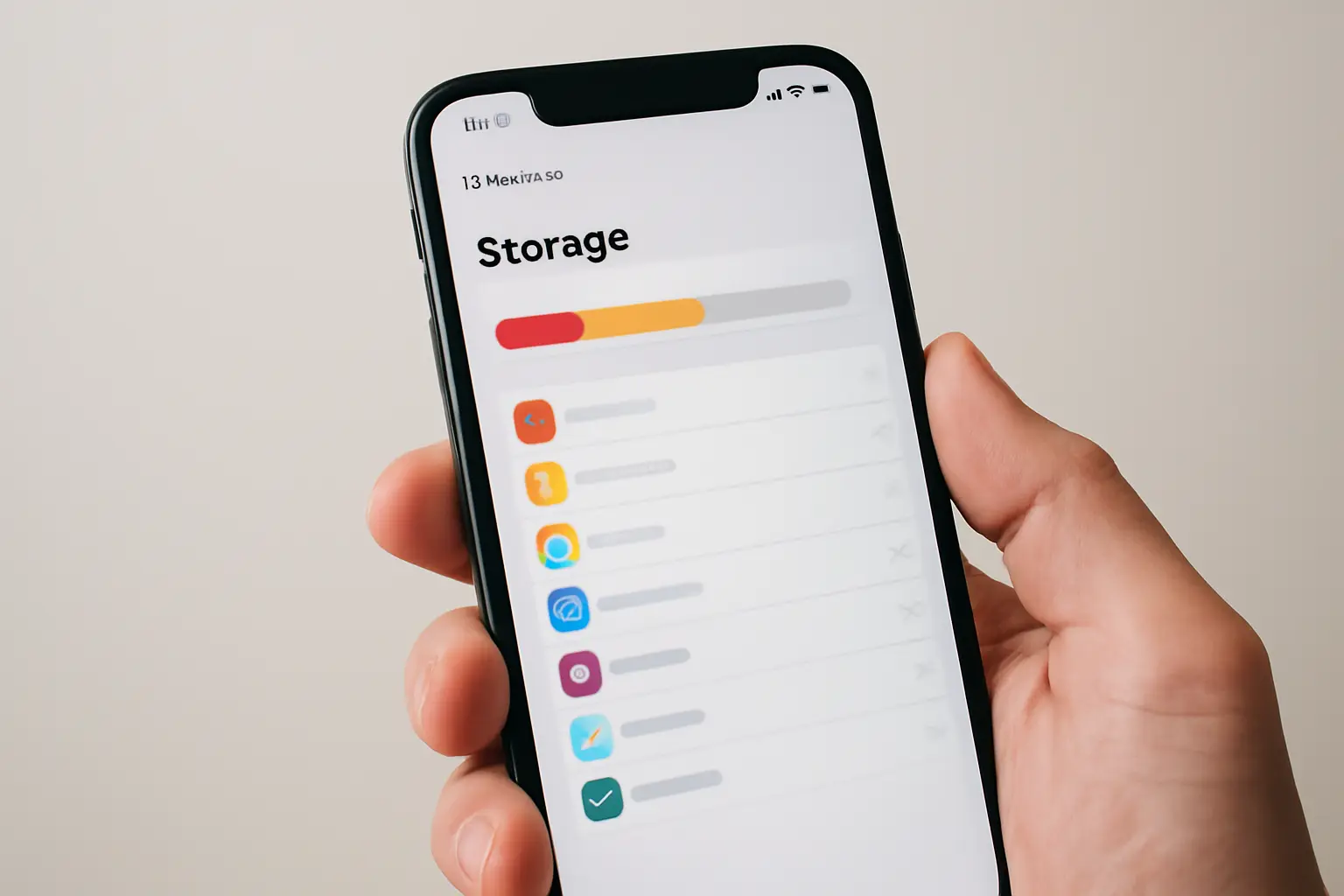
The first step is always the same: open Settings, then General, then iPhone Storage. This screen breaks down exactly what’s eating into your capacity — apps, photos, messages, system data — and Apple also offers a few built-in storage recommendations based on what it finds. It’s worth spending a minute here before doing anything else, since guessing which apps or files are the culprits often leads to deleting the wrong things while the real space hogs stay untouched.
Offload Apps Instead of Deleting Them
One of the most useful tricks — and one many people never use — is offloading. When you offload an app, iOS removes the app itself but keeps its documents and data stored on the device. If you reinstall the app later, everything is right where you left it. This is different from simply deleting an app, which wipes both the app and all its associated data permanently.
This distinction trips a lot of people up. Offload App and Delete App sound like they do the same thing, but they don’t: offloading is a space-saving pause button, while deleting is a full removal. If you’re unsure whether you’ll need an app again soon, offloading is the safer choice.
How to Offload an App
- Go to Settings > General > iPhone Storage.
- Tap the app you want to offload.
- Select “Offload App” rather than “Delete App”.
Let Photos Manage Itself
Photo and video libraries are often the single biggest reason iPhones run out of space, especially if you shoot a lot of video or take burst shots. Turning on Optimize iPhone Storage inside the Photos settings solves a large part of this problem automatically. With this setting enabled, your device keeps smaller, space-saving versions of your photos and videos locally, while the full-resolution originals are stored safely in iCloud. You still get to view and edit everything as normal, but the local footprint is much smaller.
Clear Out Large Attachments and Messages
Years of text conversations accumulate more than you’d expect — voice memos, videos, PDFs, and images sent back and forth all sit inside the Messages app taking up space. The iPhone Storage screen highlights these large attachments directly, along with other bulky items worth reviewing. Going through this list occasionally and clearing out attachments you no longer need is one of the quickest ways to recover several gigabytes without much effort.
Do a General Clean-Up
Beyond the specific tricks above, the fastest overall approach is simply reviewing what’s installed and stored on your phone and being honest about what you still use. This usually means:
- Offloading or deleting apps you haven’t opened in months.
- Removing duplicate or blurry photos and videos you never look at.
- Deleting downloaded music, podcasts, or videos that have already been played and don’t need to stay local.
- Clearing out old voice memos and screen recordings sitting unused.
None of these steps take long individually, but done together they often free up a surprising amount of space in one sitting.
Protect What You Free Up
Freeing up space is only half the job — keeping your device backed up matters just as much, especially before you start deleting things in bulk. If you’re not sure how to Back up Your iPhone properly, it’s worth doing this first via iCloud or a computer backup, so that offloading or deleting anything doesn’t put important data at risk. A recent backup also means you can restore quickly if you ever switch to a new device or need to reset your current one.
While you’re tidying up storage, it’s also a good moment to check your device’s overall health in other ways. Reviewing the Best Antivirus Apps for iPhone & iPad can help you spot bloated background processes or suspicious apps that might be quietly consuming both storage and battery life. Similarly, if you use an Apple Watch alongside your iPhone, browsing a list like TOP-10 Apple Watch Applications can help you decide which companion apps are actually worth keeping installed on both devices.
Final Thoughts
Freeing up storage on an iPhone isn’t about one dramatic fix — it’s a combination of checking exactly where space is going, using offloading intelligently instead of deleting outright, letting Photos optimise itself, and periodically clearing out message attachments and unused apps. None of these steps demand technical expertise, and together they can turn a phone that’s constantly warning you about low storage into one that runs smoothly again.